Search parameters card
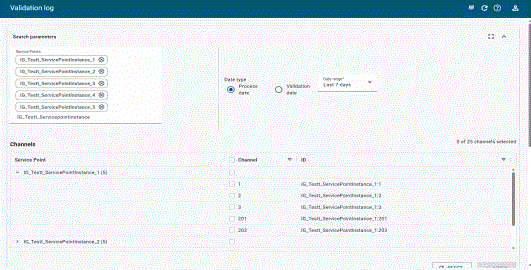
The Search parameters card allows users to search for service points and their channels.
The card supports the following actions:
-
To maximize the card, click Maximize (
 ).
). -
To restore the card to the original view, click Minimize (
 ).
). -
To collapse the card, click Up (
 ).
). -
To expand the collapsed card, click Down (
 ).
).
Use the following procedure to view processed or validated service points and channels:
-
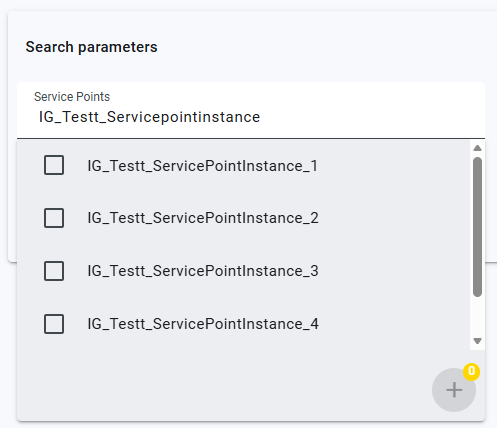
In the Search parameters field, enter the service point or enter a value to automatically populate a list of service points that contain the value entered.
-
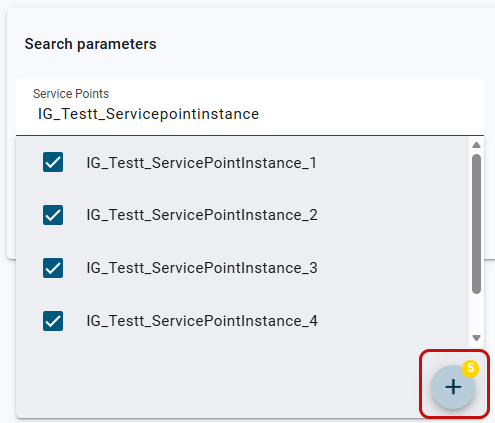
Select the checkboxes for the service points you want to view.
Tip: The number of selected service points appears on the Add icon (
 ).
).
-
Click Add (
) to add the selected service points.The Channels table appears with the data for the selected service points.
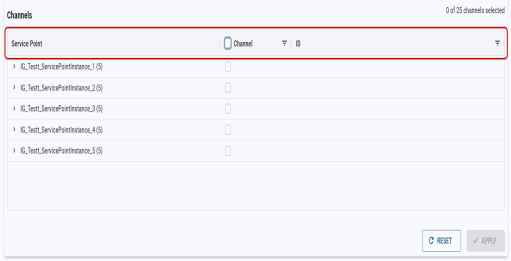
Note: The Apply option is disabled (grayed-out) and the Validation results card does not appear on the page until at least one channel is selected and applied. For more information, see Channels table.
-
(Optional) To change the data that appears in the table, select Process date or Validation date, and then select a date range. By default, Processed date and Last 7 days are selected.
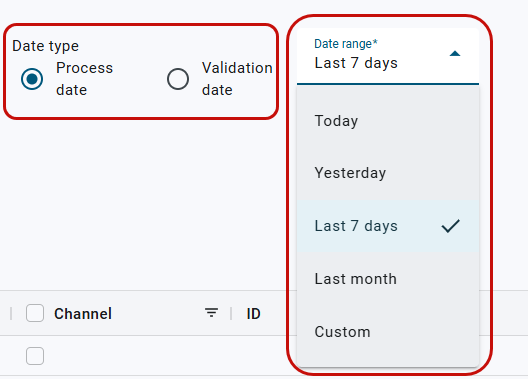
To select a specific date range, select Custom. The Select date range option appears. Using the date-picker (
 ), select the date range and click Apply. By default, the start and end time is 12:00 AM. To change the start and end time, enter a time in each of the appropriate boxes.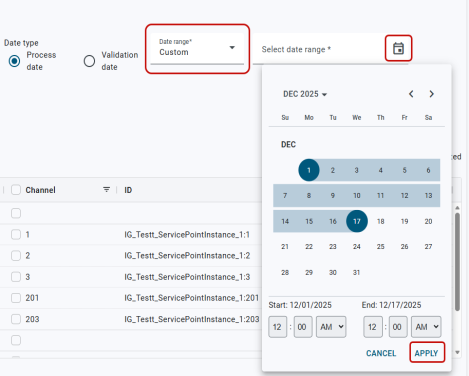
The Channels table shows a list of service points and channels for the selected date range.
Related topics: